


Why calm, methodical action matters
Finding out your WordPress site has been compromised can trigger panic and quick fixes like deleting files or only changing the admin password. Such actions risk making matters worse: losing content, corrupting the database, or destroying forensic evidence. A structured approach maximizes chances of recovery without data loss and minimizes the window of continued exposure.
The recovery goals are threefold: neutralize the malicious code, restore site integrity, and prevent reinfection. For WooCommerce stores or sites connected with PrestaShop data, preserving customer records and order history means extra caution: never modify the production database without a full, verified backup.
First step: isolate the site and protect users
Before making changes, put the site into maintenance mode and, where possible, restrict access by IP or credential. On shared hosting, use control panel rules (.htaccess, NGINX conf) to limit traffic. For e-commerce sites, notify customers discreetly and temporarily disable payments to avoid financial loss.
Immediately change critical passwords (hosting control panel, FTP/SFTP, database, WordPress admin accounts) from a known-clean machine. If the attacker controls accounts, changing passwords from a compromised host may be ineffective; always use a trusted device and network.
Backups: your safety net
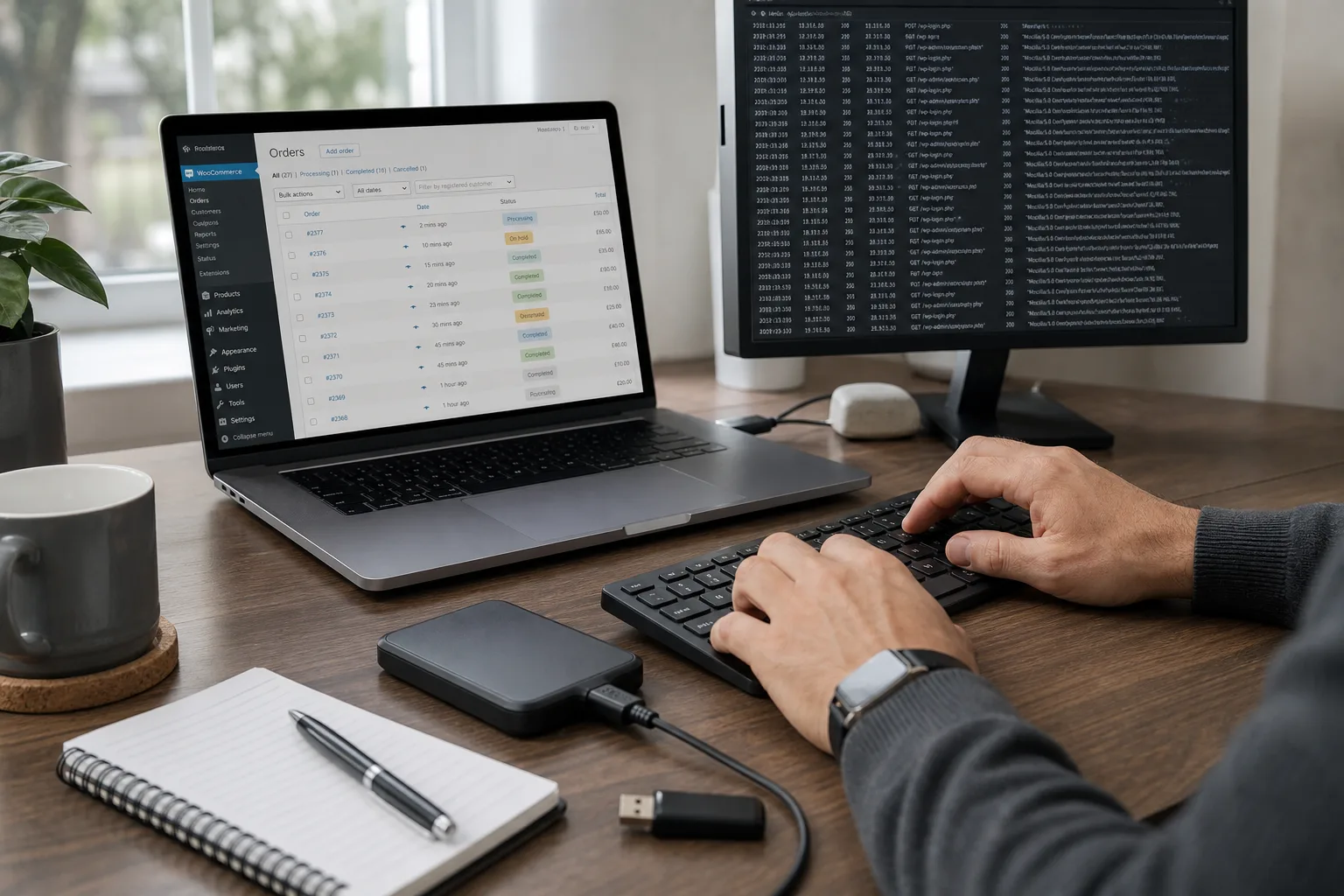
Create a full backup (files and database) before deleting anything. Even a compromised snapshot is essential for forensic analysis, data recovery and comparison after cleanup. Store backups off the server (external drive or secure cloud) and keep multiple historical versions if available.
Locate the last known-good backup. If you can restore to a pre‑compromise state, plan the restoration carefully—check for legitimate updates since that backup so you don’t lose recent content or orders.
Detecting and inventorying symptoms
Look for typical indicators: recently modified files, unexpected admin users, strange redirects, injected content, mass outbound email, or severe performance degradation. For WordPress, review themes and plugins: check file modification dates and verify checksums against official sources.
Run security scanners and file integrity checks from a secure workstation to produce a report. Server logs (access.log, error.log) and FTP/SFTP logs are essential for tracing the intrusion path. If customer data appears exfiltrated, verify legal notification requirements such as GDPR and prepare appropriate communications.
Cleaning infected files safely
Do not delete files indiscriminately. Start by listing recently changed files and compare them to official plugin/theme packages. For WordPress, reinstall themes and plugins from official repositories rather than attempting ad hoc edits. Remove unused or deprecated plugins that may have been the entry point.
Uploaded files can hide backdoors, especially in wp-content/uploads. Preserve legitimate media but remove unexpected executable files. Limit allowed upload types and remove PHP files from upload directories. For WooCommerce, be careful to avoid deleting order-related attachments or invoices stored in uploads.
Database corrections and user accounts
Inspect wp_users for suspicious admin accounts. Don’t delete accounts without a backup and activity trace — consider renaming or changing passwords and forcing logout. Search wp_options and post content for injected base64 or obfuscated code.
Avoid raw SQL edits unless you are confident. Export the database, work offline, validate the fixes, then import. For e-commerce sites, ensure order records and customer metadata remain intact; a mistaken SQL change can corrupt transactional history.
Finding the root cause
Identifying how the attacker got in is essential to prevent re‑infection: vulnerable plugin, insecure theme, FTP credentials leaked, outdated PHP, or weak passwords. Use logs and file timelines to determine the vector. If a plugin is the culprit, record the version and consult vulnerability databases (CVE, WPScan). If the vendor provides no fix, replace the plugin with a maintained alternative.
Hardening after cleanup
After remediation, harden the installation: enable two‑factor authentication for privileged accounts, enforce least privilege for users, set correct filesystem permissions (644 for files, 755 for folders), enable TLS, and apply security headers (Content‑Security‑Policy, X‑Frame‑Options). Deploy a Web Application Firewall (WAF) or CDN filtering service to block common attacks.
Schedule updates and test them on a staging environment before applying in production. For stores, add fraud detection and monitor unusual order patterns such as spikes from a single IP.
Continuous monitoring and when to call professionals
Keep close monitoring for at least 30 days after recovery: review logs, set alerts for file changes and admin logins, and run automated scans. If there is evidence of data exfiltration, numerous backdoors, or root‑level server access, engage an incident response or forensics specialist promptly.
Securantis can help with vulnerability scanning and implementing protective measures tailored to WordPress and WooCommerce environments, but complex breaches may require external forensic expertise.
Priority checklist (execute in order)
-
Take a complete off‑server backup of files and database before changing anything.
-
Isolate the site (maintenance page, IP restriction) and inform stakeholders.
-
Change critical passwords from a known-clean device and revoke sessions.
-
Inventory: run scans, list modified files and new users, and review logs.
-
Reinstall themes/plugins from official sources and remove obsolete components.
-
Inspect and correct the database in a secure offline environment.
-
Apply patches, upgrades and hardening measures (2FA, WAF, proper permissions).
-
Monitor intensively post‑recovery and schedule an audit if necessary.
Conclusion
Cleaning a hacked WordPress site without data loss requires discipline: isolate, back up, analyze, clean, and harden. Immediate preservation of evidence via backups and logs is essential to both recovery and future prevention. Reinstalling components from trusted sources and carefully validating database changes reduce the risk of accidental data loss.
Prevention is the long‑term answer: timely updates, strict account management, regular backups and continuous monitoring significantly lower the probability and impact of compromises. When in doubt—particularly with customer data exposure or persistent threats—consult professionals for incident response and forensic analysis.