

Why diagnose before you clean
When you suspect a compromise, the instinct is often to "clean quickly." Diagnosing first reduces the risk of destroying forensic evidence, leaving persistence mechanisms in place, or overlooking a broader compromise (for example at the host or external accounts). A structured diagnostic helps prioritize actions — isolate the site, back up intact data and decide whether professional response is needed.
The goal is not only to confirm an infection, but to measure its scope: modified files, rogue admin accounts, active scripts, redirects, spam SEO or injected content. In WordPress environments the variety of themes and plugins multiplies attack vectors; distinguishing legitimately updated files from maliciously altered files is crucial.
1) Unknown administrator accounts and suspicious permissions
One of the clearest indicators is an administrator account you did not create. Log into the WordPress dashboard and review Users. Beware of accounts with the "Administrator" role or any role with broad edit rights.
If you find suspicious accounts: don’t immediately wipe all traces — first take screenshots, record identifiers and export the user list from the database if possible. Then change passwords of legitimate accounts, force session resets (see sessions section) and remove unknown accounts after backing up. Also inspect the wp_usermeta table for elevated capabilities or added API keys.
2) Unexpected redirects and changed home pages
Redirects to external malicious domains (often pharmaceutical, adult or scam sites) are common. Test your site from several networks (mobile, VPN, incognito browser) — some malware serves payloads only to specific user agents or IP ranges.
Check the root .htaccess (Apache) and Nginx rules, and search for wp_redirect() calls in code. Look for meta-refresh tags and injected scripts in page headers. If the homepage is altered while editable content appears normal in the editor, this points to server-side injection or a PHP overlay modifying the rendered HTML.
3) Recently modified or unknown files
Inspect file timestamps via FTP/SFTP or the host file manager. Recent changes on wp-config.php, index.php, theme functions.php, or files under wp-includes should trigger suspicion.
Don’t delete unknown files before taking a copy. A good approach is to compare your install against a clean copy of the same WordPress core, plugin and theme versions. Tools like diff, Git (if you use version control) or integrity-check plugins help. Files with random names, encoded PHP (base64, gzinflate) or obfuscation are strong infection indicators.
4) Suspicious scripts and cron jobs
Persistent scripts often run via server cron jobs or WordPress hooks (wp_cron). Review scheduled tasks at the server level and inside WordPress (plugins such as WP Crontrol can show wp_cron hooks). Look for unknown jobs, recurring calls to external URLs or PHP scripts in temporary folders.
Attackers use cron jobs to reinstall backdoors after a superficial cleanup: disable suspicious tasks, save their definitions and replace compromised files with clean versions.
5) Database traces (injections, modified options)
Compromises frequently leave traces in the database: auto-posted content, altered options (wp_options), shortcodes or iframes inserted into content. Search for common spam SEO keywords, external iframes or encoded scripts.
Use careful SQL queries to locate patterns (for example SELECT * FROM wp_posts WHERE post_content LIKE '%<iframe%'). Back up the database before changing it. If unsure, export it for professional review.
6) Increased CPU usage, traffic spikes or outbound email
Operational signs include unexplained server load, traffic spikes or a sudden surge in outbound emails (indicating the server is being used for spam). Check access and error logs, CPU/memory usage and mail queues.
On shared hosting, spikes can also be caused by other tenants; ask your host for detailed logs and executed scripts. For WooCommerce stores, overloads might stem from brute-force attempts on checkout pages or transaction-targeted injections.
7) Google Search Console alerts and blacklists
Google Search Console often notifies site owners about SEO-based infections: hacked content, redirects or malicious pages. Check messages and affected pages. Services like Sucuri SiteCheck, VirusTotal and search engine blacklists also provide alerts.
Always analyze the reported pages locally — don’t simply remove the flagged pages without determining whether the issue originates from a vulnerable plugin or direct code/database injection.
8) Strange session behavior and authentication issues
If sessions are being invalidated or legitimate users can’t log in, this may indicate cookie manipulation, changed salts/keys in wp-config.php or password resets initiated by an attacker. Inspect authentication keys (AUTH_KEY, SECURE_AUTH_KEY, etc.) and session management plugins.
Force logout for all sessions via the database or security plugins, then require password resets. Enable two-factor authentication for administrator accounts.
9) Front-end oddities (popups, ads, forms)
Sudden popups, intrusive ads or forms requesting unusual data are signs of client-side JavaScript injection. Inspect page source and look for scripts loaded from external domains or encoded snippets.
For WooCommerce sites, script injections on cart or checkout pages are especially dangerous since they can capture payment data. Prioritize isolating payment pages and notify your payment processor if you suspect data capture.
10) PHP error logs and unusual access patterns
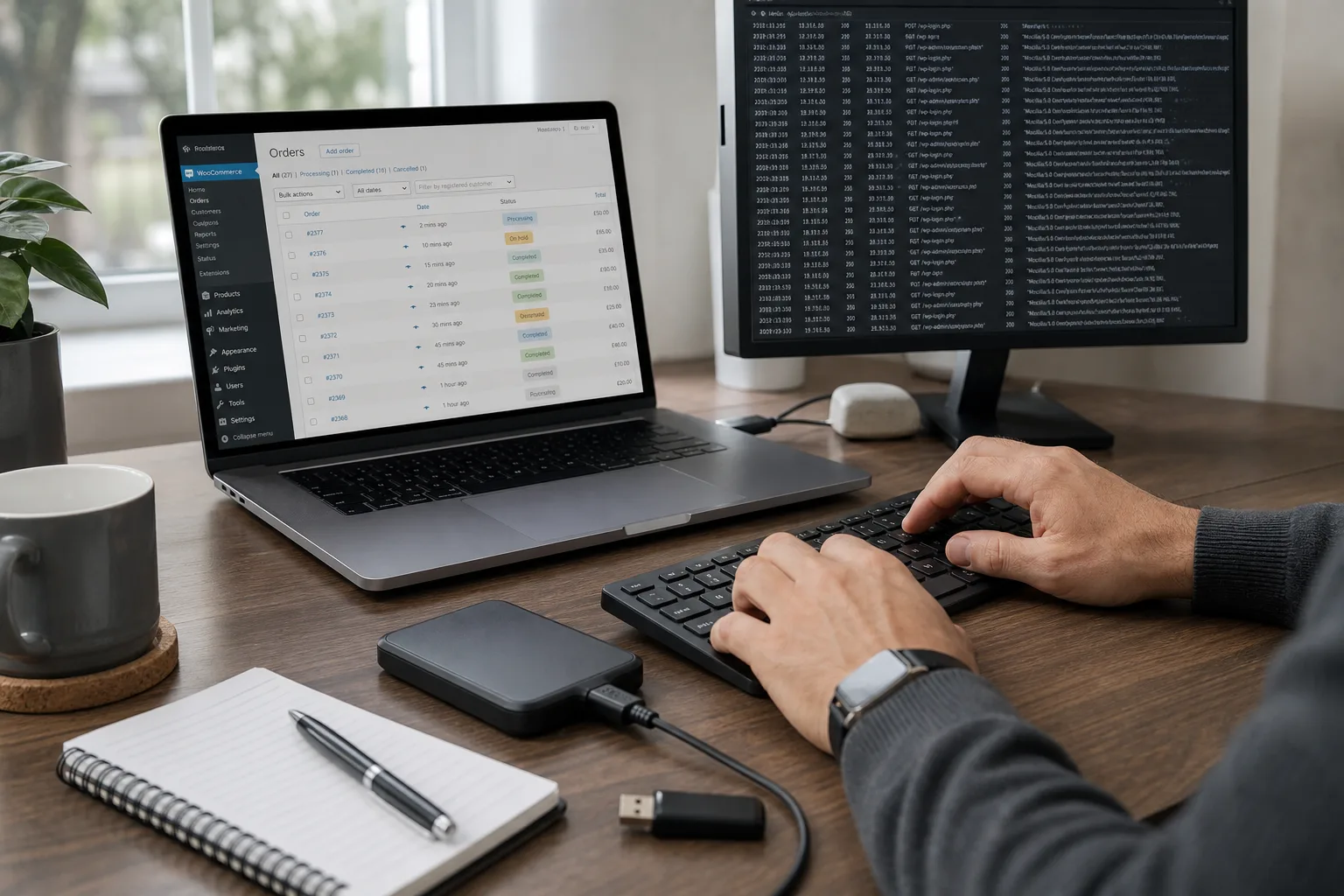
Review PHP error logs and access logs. Look for repeated requests to wp-login.php, xmlrpc.php, or requests to unknown files. Frequent HTTP 500 or 403 codes may indicate manipulation or attempts to execute scripts.
Enable temporary verbose logging if needed, but avoid exposing sensitive logs publicly. Logs help identify origin IPs and attack signatures.
11) Outdated plugins/themes and known vulnerabilities
Exploiting outdated plugins is still the most common attack vector. Audit installed plugins/themes and flag items not updated for a long time or listed as vulnerable in WPVulnDB.
Do not rush updates during an active compromise without backups; snapshot the site and perform updates on a copy or after isolating the site. If a plugin is proven vulnerable, deactivate it and replace it with a maintained alternative.
12) Additional safe tests before cleansing
Take a full offline backup (files and database) before any modification. Use a staging environment to reproduce the issue. Run integrity checks (compare file hashes), server-side antivirus scans and verify file permissions (avoid 777 in production).
Only restore backups that you have verified as clean—backups can also contain the compromise. If access vectors are unclear (compromised FTP, cPanel, database user or API keys), rotate those credentials immediately.
When to call a professional
If the incident involves data exfiltration, host-level compromise or obfuscated backdoors, engage a digital forensics or incident response expert. Amateur cleanups risk further damage or loss of legal evidence. Securantis can assist with WordPress configuration hardening, but complex incidents require specialized forensic work.
Provide the responder a minimal incident report: relevant logs, screenshots, list of modified files and temporary limited-access accounts.
Conclusion
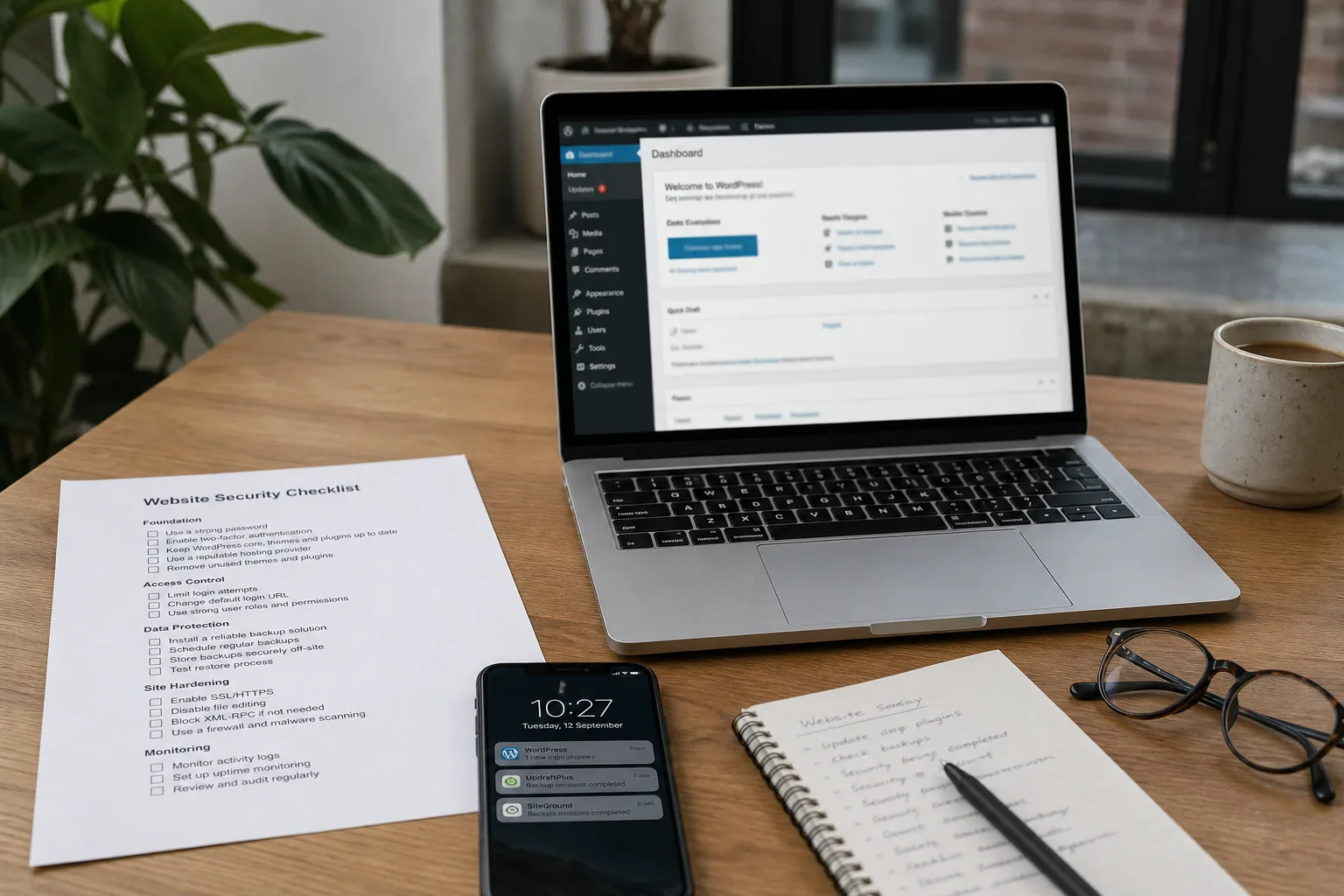
Diagnosing a suspected WordPress compromise requires method and caution. Start by isolating the site, making an offline backup and collecting evidence before deleting anything. Inspect administrator accounts, redirects, modified files, cron jobs, database entries and logs to assess the scope of the incident.
Emphasize standard defenses: offline backups, controlled updates, least privilege, monitoring and strong authentication. If you find persistent backdoors, unclear access paths or sensitive data loss, call a specialist promptly. A measured, evidence-preserving response limits damage and protects your users and reputation.